 PitchShed
Marking the passage
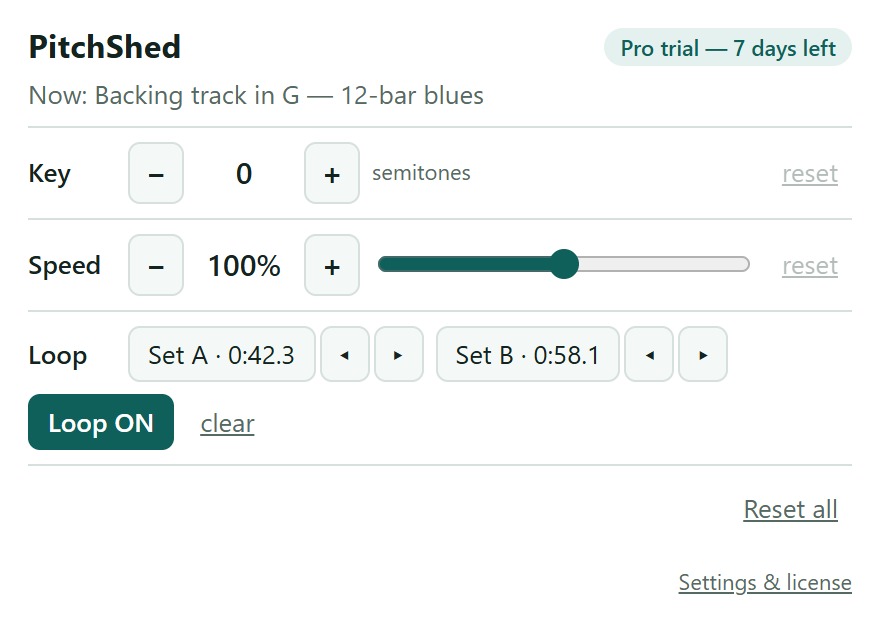
Play the video until the passage you want to work on is about to start, and press Set A in the popup. Let it run to the end of the passage and press Set B. The Loop row now shows both times, such as 0:42.3 and 0:58.1, and the loop switches on by itself: each time playback reaches B, it jumps back to A.
Fine-tuning the points
The small arrows beside each point move it by 0.1 seconds. Slide A until the loop starts exactly on the beat, and B until it ends cleanly. You can do this while the loop runs and hear the result on the next pass.
The rules the loop follows
- Set B stays grayed out until A is set.
- If a point ends up at or past the other one, B is cleared and you set it again.
- Loop OFF pauses the repeat and keeps the points. Clear removes both.
- Live streams have no end to jump back from, so the loop is off there.
Where a loop pays off
A passage that sounds hopeless the third time you hear it may sound easy the thirtieth. A loop does the repeating, so your attention stays on the music instead of on the mouse. Pair it with the Speed row to repeat the passage slower than the recording.
Where to end the loop
Put B a hair after the last note has died away, not on it. If B lands on the last note, the jump back cuts the sound off and the repeat feels abrupt. A little silence at the end gives the passage room to breathe before it starts again.