 PitchShed
What YouTube does and does not give you
YouTube’s player lets you change the speed, and the pitch stays where it is when you do, so speed never changes a song’s key. The player has no key control. If you want the recording a little lower or a little higher, something has to sit between the video and your speakers.
Changing the key in the tab
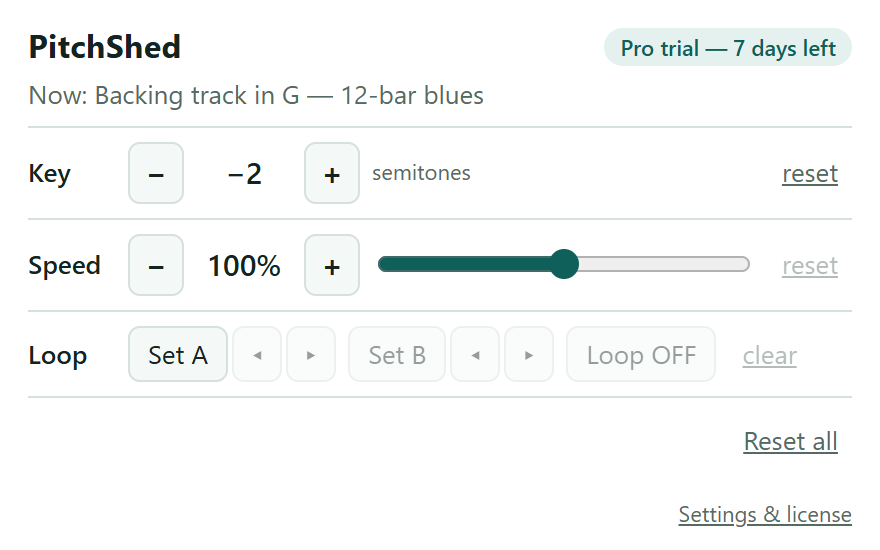
Start the video and click the PitchShed icon in the toolbar of that tab. The popup has a Key row that starts at 0. Press + to raise the song by one semitone and − to lower it. You hear the change straight away: there is no file to export and no page to reload. The range is 12 semitones in each direction, a full octave up or down.
How far to go
One semitone is the distance between neighboring keys on a piano or frets on a guitar. Two semitones make a whole step, so G becomes F and A becomes G. Most songs need a small correction rather than a big one, and the further you shift, the more processed the sound can become, so move one step at a time and listen after each.
Coming back to the same song
Open the same video another day and click the icon again: the key you chose is back, together with the speed and loop points you set. That part is covered in saving key and speed for each song.
What it will not do
PitchShed changes how the video sounds in your own browser tab and nothing else. It does not download or record the audio, and it cannot reach services that protect their audio with DRM.