 PitchShed
Slower, but still in tune
When you slow a recording down the old way, as on a tape or a record, the pitch drops with it. Browsers do not work that way: they stretch the sound in time and keep the pitch where it was. PitchShed builds on that to give you a speed control from 50 % to 150 %, so a slowed solo still sounds like the right notes, only easier to follow.
Setting the speed
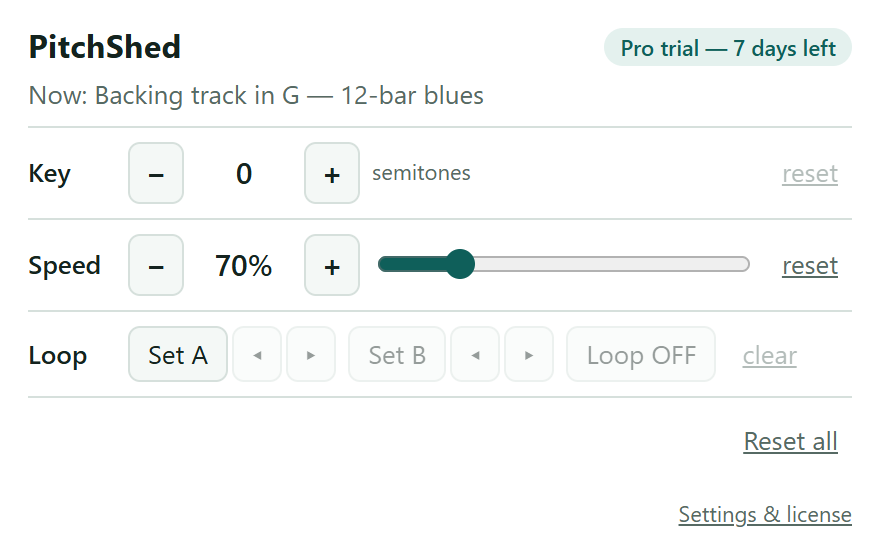
Open the popup from the toolbar while the video is playing. The Speed row shows 100 %. Press − to go down by 5 %, press + to go up, or drag the slider to land on a speed in one move. Nothing reloads and the video keeps playing, so you can find the right speed while the hard bar is going by. The reset link next to the slider takes you back to 100 % in one click.
Why not just use the speed menu
YouTube’s own speed setting works too, and it also keeps the pitch. PitchShed puts speed next to the loop and the key, so a slow section can be repeated and, if the song sits too high, lowered in the same popup. It also applies your speed again when the next video starts, which is a moment when YouTube tends to reset it.
Free, and remembered
Speed control is free for good, with no time limit and no account. If you also use the Pro features, the speed you chose is saved for that video and comes back the next time you open it.